Posts

XML Schema Designer

Microsoft recently released XML Schema Designer Community Technology Preview (CTP). This is the first Community Technology Preview (CTP) of the XML Schema Designer. It is a graphical tool for working with XML Schemas. This CTP introduces XML Schema Explorer - a tool that helps you navigate, search and work with schema sets. XML Schema Explorer will automatically come up when you open or create an xsd file in Visual Studio. It is docked with the Solution Explorer tool. To download v1(beta) of this new tool, go to http://www.microsoft.com/downloads/details.aspx?FamilyID=4DE12C98-1221-4A0E-B5AA-BFC7DAF02550&displaylang=en

SharePoint Server 2007 SDK Released

Recently Microsoft released the SharePoint Server 2007 SDK. The Microsoft Office SharePoint Server 2007 SDK contains conceptual overviews, “How Do I…?” programming tasks, developer tools, code samples, references, and an Enterprise Content Management (ECM) starter kit to guide you in developing solutions based on Microsoft Office SharePoint Server 2007. To learn more about this, or to download the SDK, go to http://www.microsoft.com/downloads/details.aspx?familyid=6d94e307-67d9-41ac-b2d6-0074d6286fa9&displaylang=en

Description of the "Lorem ipsum dolor sit amet"

If you ever accessed the help features in Word and came across the phrase "Lorem ipsum dolor sit amet" and wondered what it meant, you've come to the right place. Although the phrase is nonsense, it does have a long history. The phrase has been used for several centuries by typographers to show the most distinctive features of their fonts. It is used because the letters involved and the letter spacing in those combinations reveal, at their best, the weight, design, and other important features of the typeface. A 1994 issue of "Before & After" magazine traces "Lorem ipsum ..." to a jumbled Latin version of a passage from de Finibus Bonorum et Malorum, a treatise on the theory of ethics written by Cicero in 45 B.C. The passage "Lorem ipsum ..." is taken from text that reads, "Neque porro quisquam est qui dolorem ipsum quia dolor sit amet, consectetur, adipisci velit ...," which translates as, "There is no one who loves pain i...

Using Word 2007 Templates

Image
Q : How do I use templates in Word 2007? A : Using Templates in Office 2007 is one of the easiest tasks you will ever use. Basically a template document contains all the specifications for font, color, and the overall appearance of the document. To create and use a template, simply follow the procedure below. Creating a Word Template 1. Open Microsoft Word 2007. By default, Word will open a blank document (.docx). 2. Modify the document so it contains all the cosmetic elements you want to appear in all future documents that will use this template. 3. Click the Office button (located in the upper left corner of the Window) and select “ Save As ”. After specifying the “ File name ”, change the “ Save as type ” to “ Word Template (*.dotx) ”. Using a Word Template 1. When you need to create a document that reflects all the elements created in the template, simply open the template. 2. The next time you click “Save”, Word 2007 will automatically save the changes to a new document (.docx), ...

Setting Trusted Locations in MOSS 2007

Image
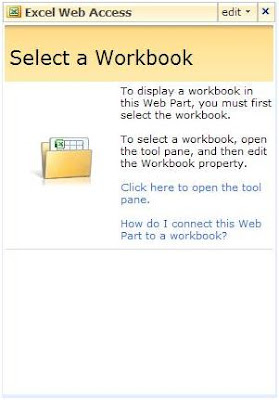
Listed below are click-by-click instructions for creating a document library, making it a trusted location, and using it to display an Excel 2007 spreadsheet via Excel 2007 web part. Create Document Library (with Excel as the default type) 1. Open the Home page to your site collection (i.e. http://moss101/Pages/Default.aspx ) 2. Click “View All Site Content” 3. Click "Create" 4. Click "Document Library" 5. Specify all the settings for the library, using Excel 2003 as the default type. For the sake of this example, the document library will be called “Warehouse Documents”. 6. A document library called "Warehouse Documents" is now created, accessible at http://moss101/Warehouse%20Documents/Forms/AllItems.aspx Make it a trusted location 1. Click "Central Administration" 2. Click "Shared Services Administration" 3. Click the Shared Service (i.e. "SharedServices1(Default)" ) 4. Click "open Shared Service Administration" 5...

SQL Server 2000 End-of-Life Support

For those with projects utilizing SQL Server 2000, Microsoft issued End of Life dates for support. Mainstream Support End of Life - April 8, 2008 Extended Support End of Life - April 9, 2013 End of "free" support Hot fixes (non-security related) will require an extended hot fix support agreement to be purchased Microsoft will not support warranty support, new features, or design changes Security updates will continue to be provided Microsoft Support Lifecycle: http://support.microsoft.com/lifecycle/ MS SQL 2000 Lifecycle: http://support.microsoft.com/lifecycle/?LN=en-us&p1=2852&x=9&y=11 With the retirement of SQL Server 2000 around the corner, this brings up an interesting question for MCAD/MCSD candidates: Will this impact certification Exam 70–229: Designing and Implementing Databases with Microsoft SQL Server 2000 Enterprise Edition? When will the exam be retired? Given Microsoft is still promoting the MCDBA certification on their site, I'm guessing 70-229 ...

Classic UI Tabs for Office 2007

Office 2007 presented users with a new easy to UI, utilizing the new ribbon interface. However, not all users are comfortable with the new UI. A new ribbon customizer tool is available for Office 2007 providing a similar look and feel as previous versions of Office. To preview the ribbon customizer, go to http://pschmid.net/office2007/ribboncustomizer/featuretourpart3.php . A trial download version is also available.